![iFoodDS-Logo-Green-1.png]](https://info.ifoodds.com/hs-fs/hubfs/iFoodDS-Logo-Green-1.png?height=50&name=iFoodDS-Logo-Green-1.png)
Using FSMA 204 label templates within Markem-Imaje's CoLOS® software
This article explains how to access, download, and use iFoodDS’ FSMA 204 case label templates within the CoLOS® platform.
These case label templates were designed to support FSMA 204 labeling and traceability requirements, and to align with GS1 standards and industry best practices.
Before You Begin
Confirm that you have:
- An active CoLOS® software license. If you don’t have a license, Markem-Imaje is offering a 90-day free trial for Trace Exchange users. You can download the free trial from the Markem-Imaje partner page in the Trace Exchange Partner Marketplace. Log into your Trace Exchange account to access.
- The case label template(s) you would like to use. You can download any of the available iFoodDS templates from the label section in this article.
How to Download iFoodDS Label Templates
- Confirm that you have a valid CoLOS® software license.
- Find the label template you want to use in the FSMA 204 Label Templates section on this page.
- Download the label template file to your computer and save it in a location you can easily access.
FSMA 204 Label Templates
Produce Labels
- Case Label for UPC (click to download)
Example image of the Case Label for UPC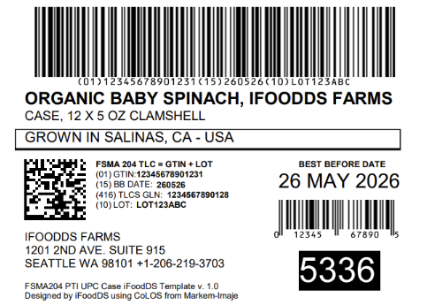
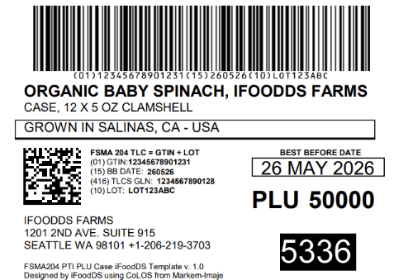
- Case Label for PLU (click to download)
Example image of the Case Label for PLU
Using the Label Templates in CoLOS®
After downloading the label template:
- Open the CoLOS® software on your computer.
- Import or open the downloaded label template file.
- Review the label layout and required fields.
- Update any required label information, such as:
- Product details
- UPC or PLU information
- Case information
- Seafood-specific details, if applicable
- Save the updated label template.
- Print or test the label according to your standard operating procedures.