![iFoodDS-Logo-Green-1.png]](https://info.ifoodds.com/hs-fs/hubfs/iFoodDS-Logo-Green-1.png?height=50&name=iFoodDS-Logo-Green-1.png)
Overview
After completing the TraceApproved™ course, you will receive a completion email containing a unique completion code. This code is used to add your TraceApproved™ Badge to both your Trace Exchange account and your supplier profile in the TraceGains Gather® marketplace (view instructions here) .
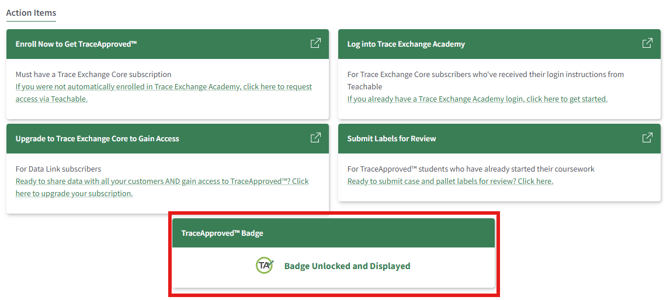
Once activated, the TraceApproved™ Badge tile will update to show that your badge has been unlocked. Customers you are connected with in Trace Exchange will be able to see your completed TraceApproved™ status.
If an incorrect code is entered, an error message will appear and you will be prompted to try again.
Unlocking Your TraceApproved™ Badge
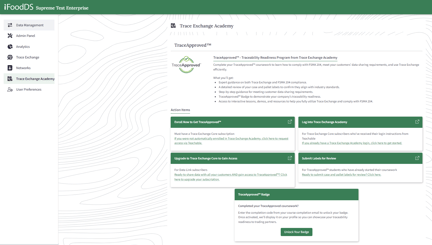
- Navigate to the Trace Exchange Academy page in Trace Exchange.
-
Locate the TraceApproved™ Badge section.
The section will display:
Completed your TraceApproved coursework?
Enter the completion code from your course completion email to unlock your badge.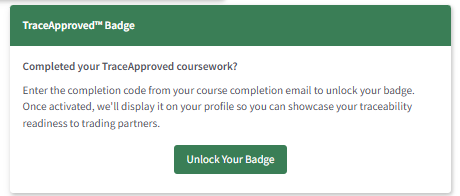
-
Click Unlock Your Badge.
A pop-up window will appear prompting you to enter your completion code.
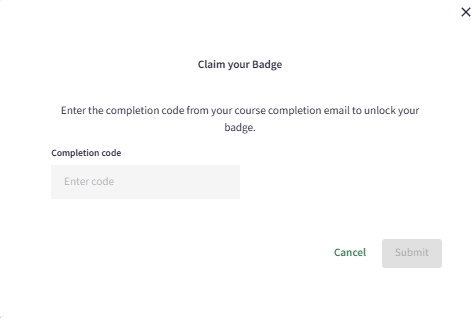
- Enter the completion code from your course completion email.
- Click Submit.
-
Confirm the badge status updates.
The badge tile will update to the following:
Badge Behavior
• Updates the TraceApproved™ Badge tile to Badge Unlocked and Displayed after a valid code is submitted
• Displays an error message if an invalid completion code is entered
• Customers connected with your organization in Trace Exchange will be able to see your completed TraceApproved™ status