![iFoodDS-Logo-Green-1.png]](https://info.ifoodds.com/hs-fs/hubfs/iFoodDS-Logo-Green-1.png?height=50&name=iFoodDS-Logo-Green-1.png)
Note:
An EDI subscription can only be purchased on a Trace Exchange Core account. If you are currently using Trace Exchange Data Link, you will need to upgrade to Trace Exchange Core to access and purchase EDI connections.
Overview
Purchasing an EDI connection allows you to electronically share ASN 856 shipping records with a specific customer trading partner. This workflow guides you through purchasing and activating the EDI subscription for that connection.
Purchasing an EDI Connection
-
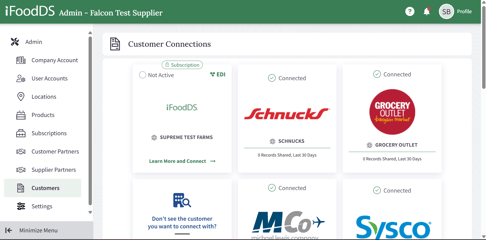
Navigate to Admin > Customers.
-
Locate the EDI Customer card you wish to purchase.
-
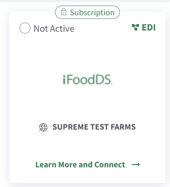
The card will display:
-
EDI in the top-right corner
-
A Subscription bubble at the top of the card
-
-
-
Click Learn More and Connect at the bottom of the card.
-
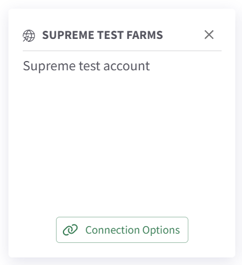
The card will flip to reveal additional options.
-
-
Click Connection Options.
-
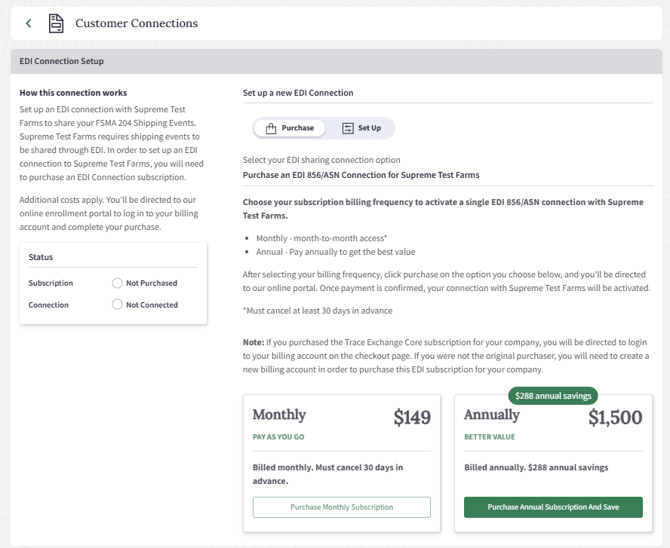
You will be taken to the EDI Connection Setup page for that Customer Trading Partner.
-
-
Confirm you are on the Purchase tab.
-
Review the details and pricing information provided.
-
-
When ready, click one of the following options:
-
Purchase Monthly Subscription
-
Purchase Annual Subscription
-
Completing Checkout
-
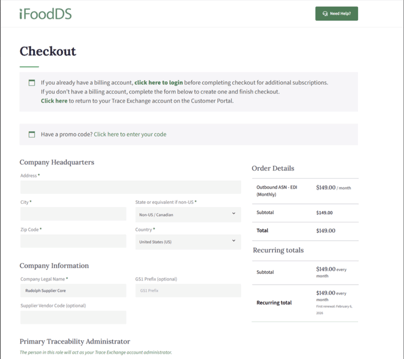
A new tab will open to the Enrollment Portal.
-
Log in to your existing billing account, or create a new one if needed.
-
Complete all required billing information.
-
Click Purchase to complete checkout.
After Purchase
After checkout is completed in the Enrollment Portal, the following status updates will appear within Trace Exchange:
-
Subscription status will display as Pending
-
Connection status will display as Pending Payment
Once payment has been successfully processed, the statuses in Trace Exchange will update to:
-
Subscription status: Active
-
Connection status: Pending Setup
Important Notes
-
EDI subscriptions can only be purchased through the Customers page workflow.
-
Subscriptions cannot be purchased by navigating directly to the Enrollment Portal.
-
After purchase is complete, refer to the How to Set Up a New Supplier EDI Connection article for next steps.
- An EDI subscription can only be purchased on a Trace Exchange Core account. If you are currently using Trace Exchange Data Link, you will need to upgrade to Trace Exchange Core to access and purchase EDI connections.