![iFoodDS-Logo-Green-1.png]](https://info.ifoodds.com/hs-fs/hubfs/iFoodDS-Logo-Green-1.png?height=50&name=iFoodDS-Logo-Green-1.png)
Use Invite to Network to invite a supplier that already has an active Trace Exchange account to connect with your organization.
Suppliers that are eligible to be invited will display with the status Able to Connect.
Once an invitation is sent, the supplier can accept or decline the invitation.
Invite a Supplier
- Log in to Trace Exchange.
- Open Networks from the left navigation.
- Select Your Supplier Network.
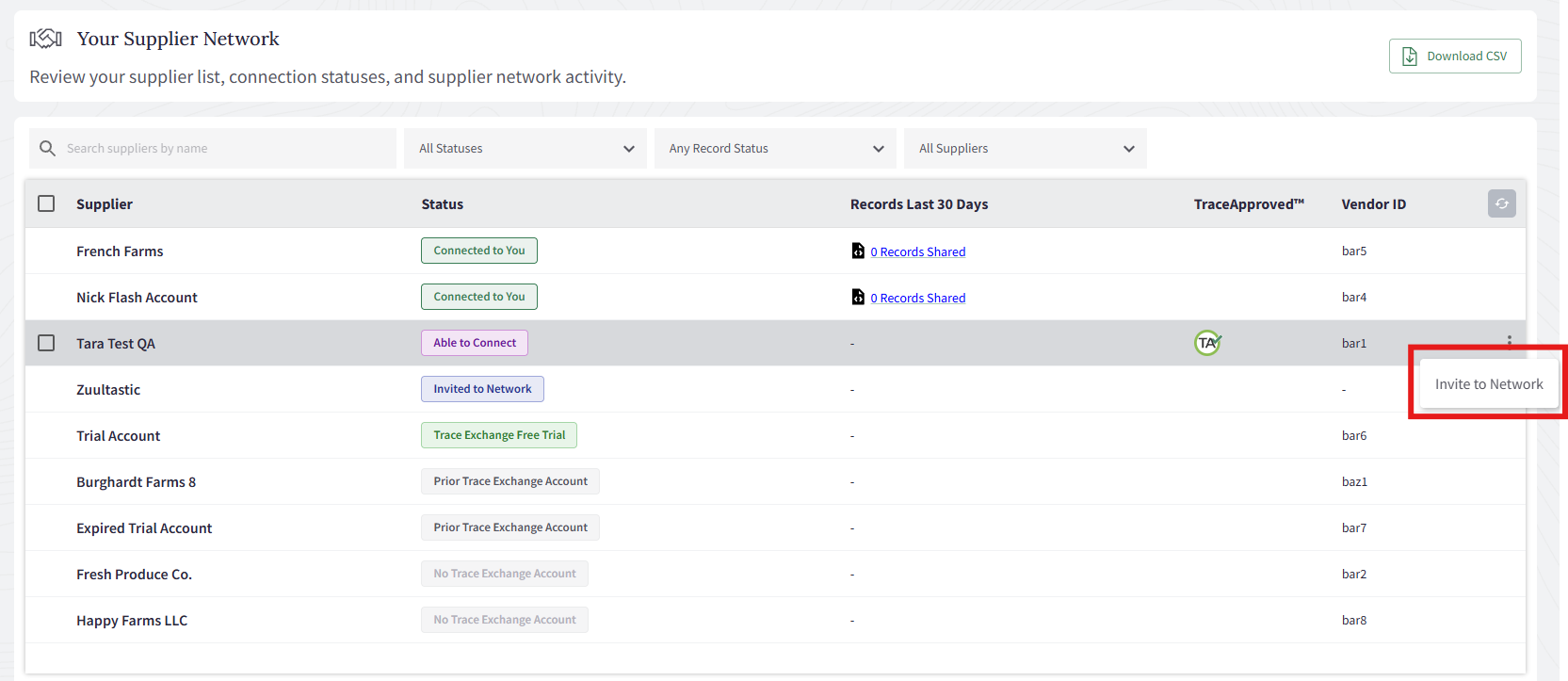
- Find a supplier with the status Able to Connect.
- Open the supplier’s Actions menu.
- Select Invite to Network.
- Confirm the invitation.
What Happens After You Send an Invitation
After the invitation is sent:
- The supplier’s status changes from Able to Connect to Invited to Network.
- The supplier is notified that your organization has invited them to connect in Trace Exchange.
- The supplier can Accept or Decline the invitation.
- The connection is not established until the supplier accepts.
If the Supplier Accepts
When the supplier accepts the invitation:
- The supplier becomes connected to your organization.
- Their status changes to Connected to You.
- Your organizations can participate in supported Trace Exchange workflows.
If the Supplier Declines
When the supplier declines the invitation:
- The connection is not established.
- Their status changes to Declined.
- You can invite the supplier to connect again in the future.
Automatic Invitations
Depending on your Supplier Network Settings, Trace Exchange may send invitations automatically on your behalf.
If your organization is set to Public, suppliers on your provided supplier list will connect automatically when they have automatic connections enabled. If they do not, Trace Exchange will automatically send them an invitation to connect on your behalf.
If your organization is set to Public with Approval, you can invite suppliers to connect, and all connections require your approval.
If your organization is set to Private, suppliers cannot find or request to connect with your organization. You must invite suppliers you want to connect with.
For more information about these settings, see Understanding Supplier and Customer Network Settings.