![iFoodDS-Logo-Green-1.png]](https://info.ifoodds.com/hs-fs/hubfs/iFoodDS-Logo-Green-1.png?height=50&name=iFoodDS-Logo-Green-1.png)
MFA Options Screen
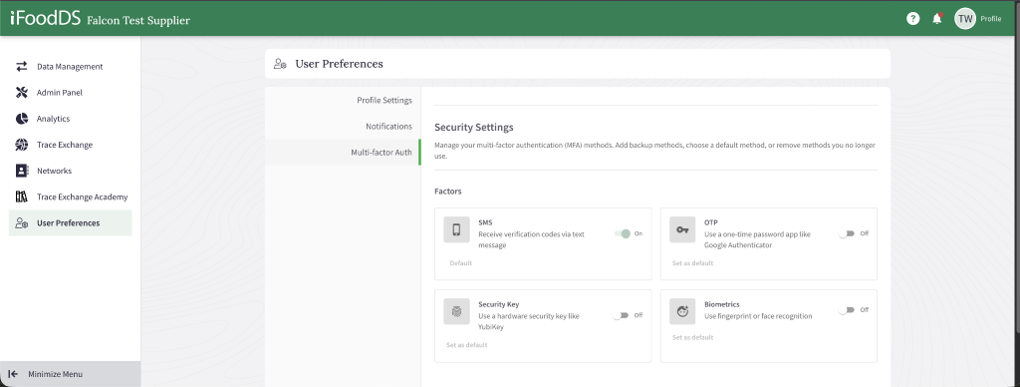
Figure 1. MFA configuration options available in User Preferences.
Access MFA Settings
- Log in to the Trace Exchange platform.
- Navigate to User Preferences.
- Select the Multi-factor Auth tab.
- Choose the MFA method you want to configure.
- Enable the selected MFA option.
- Follow the prompts to complete setup and verification.
- Optionally set the MFA method as your default authentication method.
Available MFA Methods
- SMS: Receive verification codes via text message.
- OTP: Use an authenticator app such as Google Authenticator.
- Security Key: Use a hardware security key such as YubiKey.
- Biometrics: Use fingerprint or facial recognition on supported devices.
- Users can configure multiple MFA methods.
- One MFA method can be set as the default.
- It is recommended to configure a backup MFA method.
- Some MFA options may depend on device compatibility.
Additional Notes
- Users can configure multiple MFA methods.
- One MFA method can be set as the default.
- It is recommended to configure a backup MFA method.
- Some MFA options may depend on device compatibility.